Holiday email signature
A Christmas email signature GIF, written by hand.
Write “Happy Holidays”, “Merry Christmas” or “Season’s Greetings” and your name on the pad, and download a small GIF of it writing itself out, to sit under your email signature from now until the new year. Gold Foil for a festive look, Ink on Paper for a quiet one, or Rose and Neon Blue for colour. Swap it back to your plain signature in January without paying again.
Examples
Holiday looks
Any of these works for a seasonal sign-off. Gold Foil and Rose are the festive ones; Ink on Paper is the one for a formal inbox. Click a style to try it with your own greeting.

Cinematic White
White ink and a comet pen that streaks teal at speed.

Soft Glow
White ink with a soft halo.

Classic White
Clean white ink, no glow.
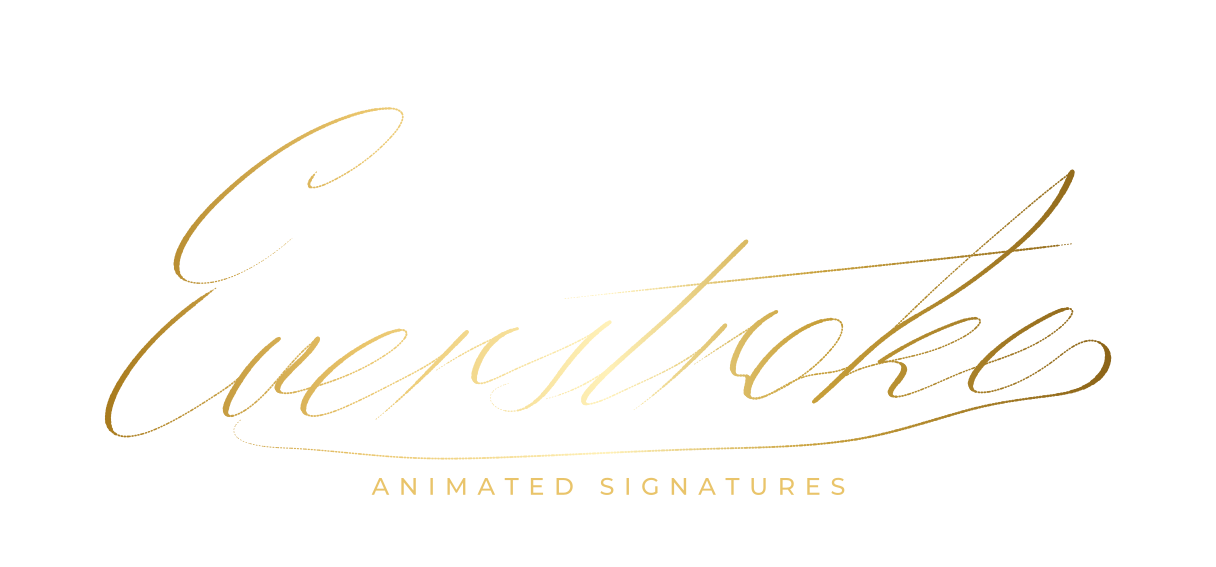
Gold Foil
A warm metallic gradient across the name.
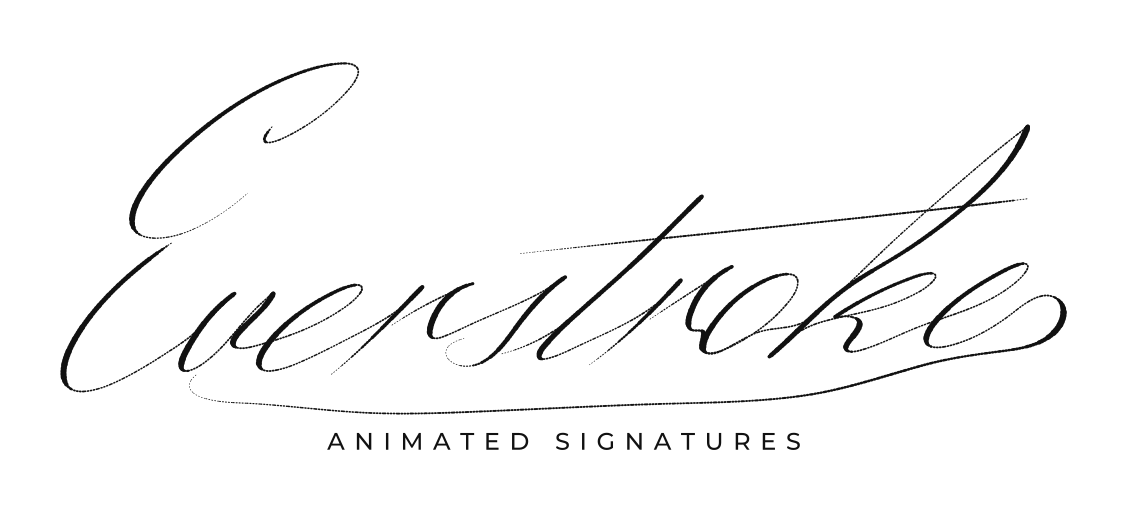
Ink on Paper
Dark ink on a paper background.
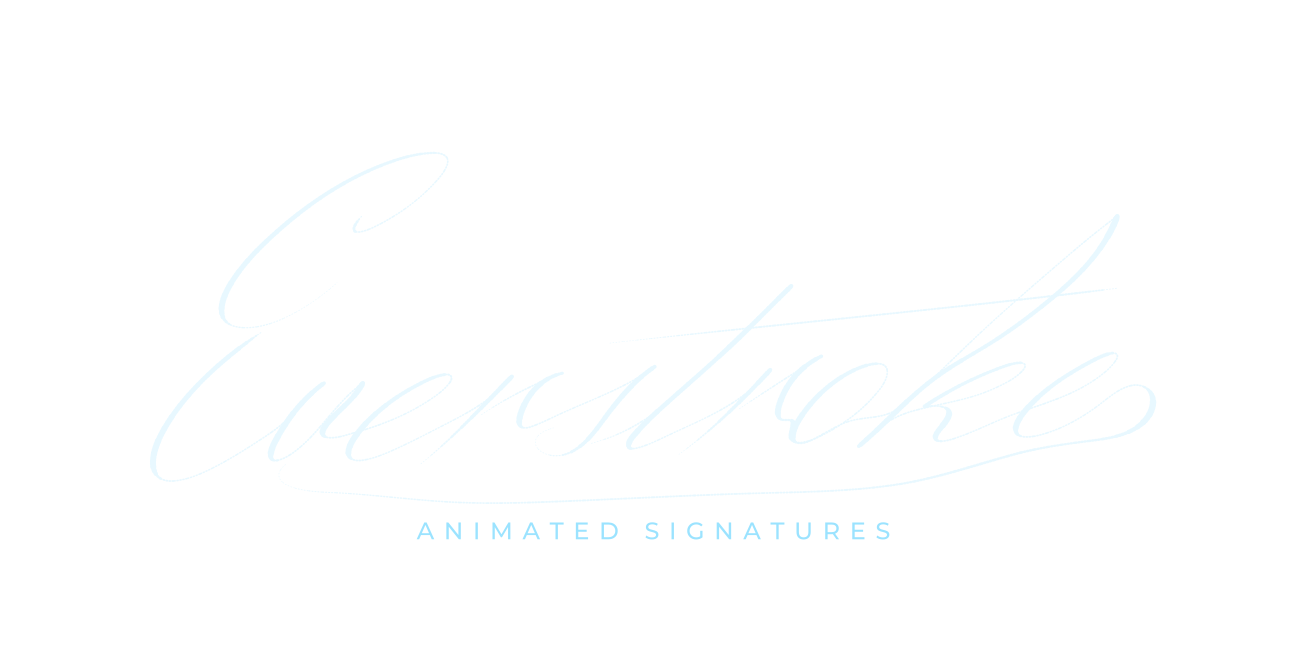
Neon Blue
Pale blue ink with a bright blue glow.
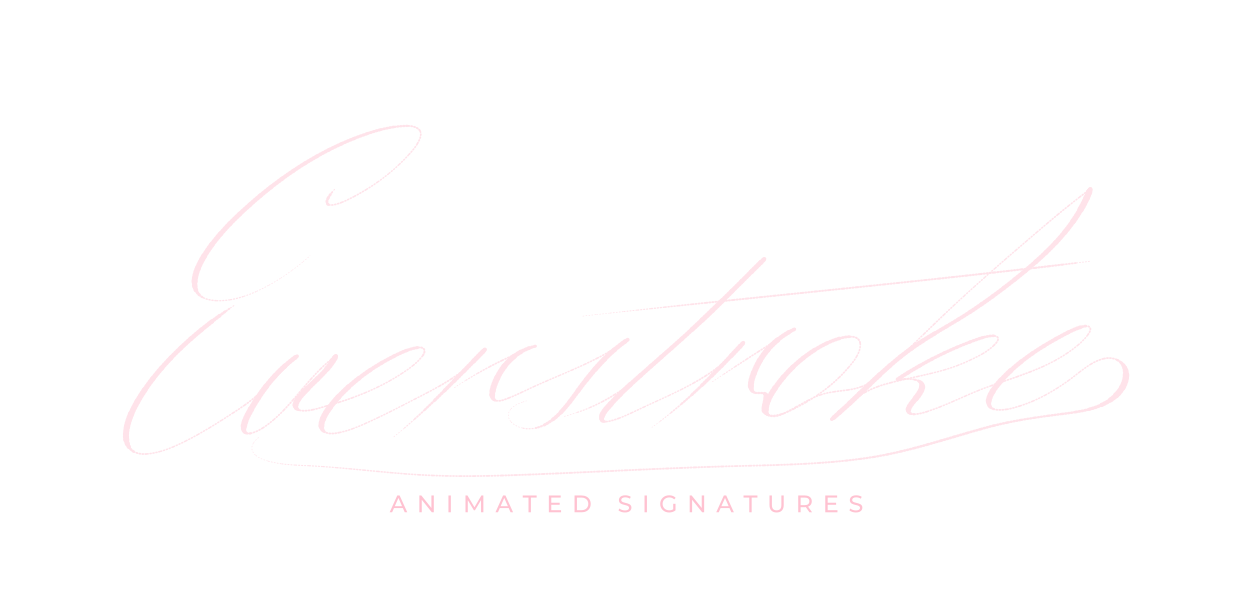
Rose
Pale pink ink with a pink glow.
How it works
How to make a Christmas email signature GIF
01
Write the greeting
On the pad, write the greeting and your first name in your own hand, as one or two lines. Short greetings animate best: “Happy Holidays, Sam” takes about two seconds to write out. Steady hand smooths the strokes.
02
Pick a festive look
Gold Foil gives a warm metallic shine; Rose a soft pink glow; Ink on Paper a plain dark ink for formal mail. Add a line underneath such as “from everyone at Acme” or “see you in January”.
03
Download the GIF and PNG
Choose Email signature on the export step. You get a looping GIF, 480 px wide, and a transparent PNG of the finished greeting for the Outlook versions that don’t animate.
Formats
Holiday email signature files
GIF
Loops in Gmail, Outlook on the web, Apple Mail and most other apps. 480, 800, 1200 px wide; use 480 for email.
Transparent GIF
No background, with an edge matched to the ink, for coloured holiday templates and dark mode. Glow is left out of this version.
PNG
The finished greeting, 3000 px wide and transparent, for Outlook versions that don’t animate and for holiday cards.
Setup guides
Add the holiday GIF to Gmail or Outlook
Add it as an image inside the signature you already use, above or below your name, and remove it in January. Shown at half its width, it stays sharp on high-resolution screens.
Gmail
- Open Gmail on the web, click the gear icon, then See all settings.
- On the General tab, scroll to Signature, pick your signature or click Create new.
- Put the cursor where the greeting should go, click Insert image, choose Upload and pick the GIF.
- Click the image, choose Small or Medium, then Save Changes.
Gmail plays the GIF on the web and in its Android and iPhone apps. The editor may show a still; send yourself a test email to see it animate.
Outlook
- In the new Outlook or Outlook on the web, open Settings, then Accounts, then Signatures.
- Edit your signature and use the picture button to insert the GIF where the greeting should go.
- Save, and send yourself a test email.
Outlook on the web, the new Outlook and Outlook for Mac animate it. Classic Outlook for Windows may show only the first frame; use the PNG there.
Taking it down in January
- Open the same signature settings and delete the holiday image, or switch back to your everyday signature.
- Keep the signature: sign in to save it, and you can restyle and re-download it next year for free.
Questions
Christmas email signature GIF questions
Will a Christmas GIF in my signature annoy people?
A short, small one that plays once per load is fine; a large, bright, endlessly flashing one is not. The GIF here writes the greeting out in about two seconds, then holds the finished text before looping, and at email size it’s a few hundred kilobytes at most.
Does it work in Outlook?
Outlook on the web, the new Outlook, Outlook for Mac and current Microsoft 365 versions play it. Classic Outlook for Windows 2016 and earlier shows only the first frame, so the PNG of the finished greeting is included for those. See the Outlook fixes.
What size should the holiday GIF be?
Use the 480 px GIF and show it at about half that width. More in the email signature GIF size guide.
Can I write it in another language?
Yes: you draw it, so any script works, including “Frohe Weihnachten”, “Joyeux Noël”, “Feliz Navidad” or a greeting in Arabic or Urdu.
Can I use the same signature for other occasions?
Yes. Draw a new greeting for New Year, Eid, Diwali or a product launch; each one is free, and can be restyled and re-downloaded.
Is the holiday signature free?
Yes. The greeting GIF and its PNG are free, and you can make a different one for every occasion at no cost.
Ready when you are.
Draw your signature, free